How to Install IPTV on Firestick: Step-by-Step Setup Guide
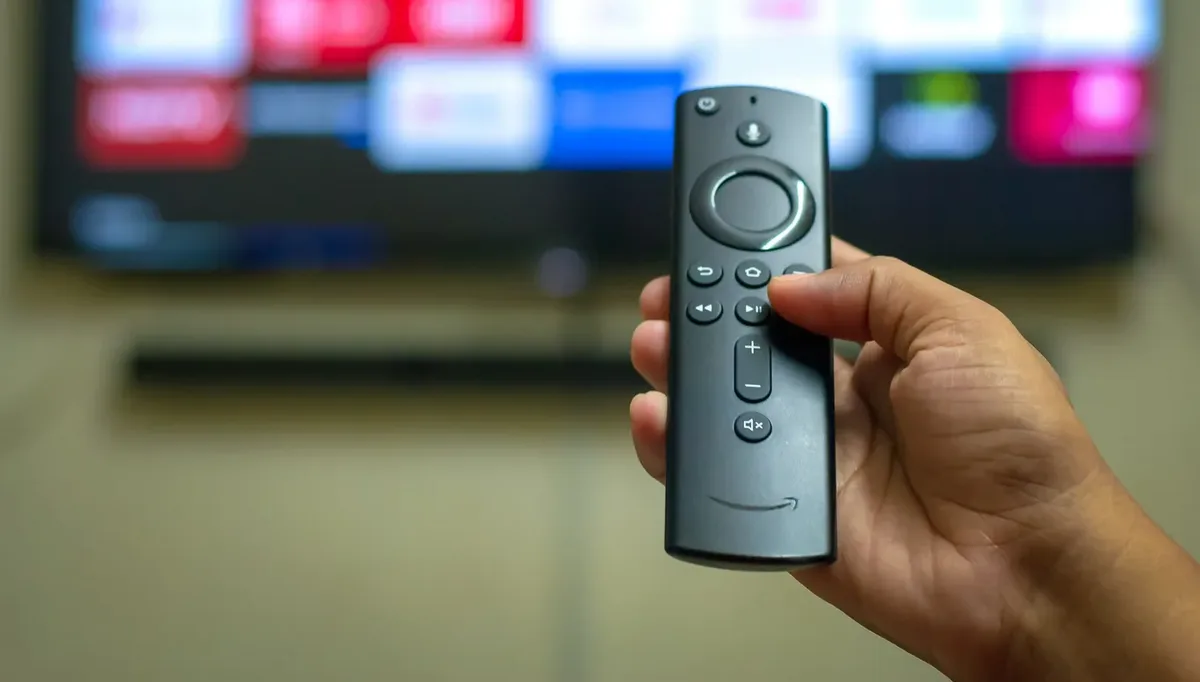
The Amazon Firestick is the most popular IPTV device in the world for a simple reason: it is cheap, it hides behind the TV, and it takes less than ten minutes to set up. This guide walks you through the complete installation, from plugging in the stick to watching live channels. If you are hunting for the best IPTV for Firestick viewing, judge the setup the same way you would judge the service: by how steady it stays at peak time, not by the size of the channel list.
What you need
- An Amazon Firestick (any generation; the 4K models are best for 4K channels)
- A TV with a free HDMI port and a stable Wi-Fi connection
- An active IPTV subscription — or a free 24H trial to test with
Step 1: Connect and update the Firestick
Plug the Firestick into an HDMI port, connect its USB power cable (use the wall adapter, not the TV's USB port, for stable power), and select the right HDMI input. Connect to your Wi-Fi network and let the Firestick install any pending system updates — outdated firmware is a common hidden cause of app problems.
Step 2: Install an IPTV player app
From the Firestick home screen, open the Appstore and install an IPTV player app. If your subscription works with an STB emulator, install it from the store instead: the emulator generates a MAC address for your device, which is how your provider activates your line on their portal.
Step 3: Add your subscription details
Open the app and enter the details from your provider: either the playlist/portal URL, or the MAC address activation if you are using the emulator method. With OrigineTv, our support team walks you through this step for free — send us your MAC address on WhatsApp and we activate your line on the portal for you.
Step 4: Load the channels and EPG
Once activated, the app downloads the channel list and the TV Guide (EPG). The first load can take a minute or two on a large library — after that, opening the app is fast. Organize your favorites now so your main channels are one click away.
Step 5: Set it up for smooth streaming
- Keep the Firestick within a strong Wi-Fi range, or use an Ethernet adapter for a wired connection — wired is always smoother for live sports (more in our buffering fixes guide).
- Close background apps and clear the player app's cache once in a while.
- Restart the Firestick if a stream ever starts lagging; it clears the memory and fixes most freezes.
That is all there is to it: plug in, install, activate, watch. If you want to test the whole process before paying anything, grab a free 24H trial and run through these steps tonight — your subscription details arrive within minutes.
Sources & further reading
Try OrigineTv free for 24 hours
Full Premium access — every channel, every match, all VOD — on your own TV, free.
See Premium Plans Get 24H TrialStay safe while streaming
One practical tip whichever provider you choose: streaming runs over your home connection, so a reliable VPN keeps your viewing private and can help with ISP throttling at peak hours — and pairing it with an ad blocker for cleaner browsing keeps the device you stream on protected too.
Some of the links in this section are affiliate links — we may earn a commission at no extra cost to you.