
IPTV Buffering? 9 Fixes That Actually Stop the Freezing
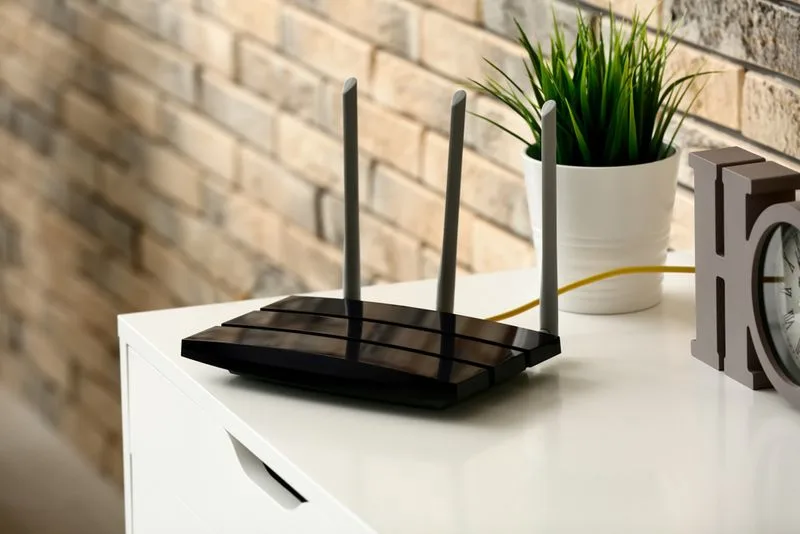
Few things are more frustrating than a stream freezing right before a goal. The good news: buffering during IPTV streaming is almost never a mystery. An unstable connection between your device and the server causes the overwhelming majority of cases — and most of them are fixable in one evening. So before paying for an "IPTV no buffering" promise from anyone, remove the bottleneck on your own network first: in most homes, that is where the freeze actually lives. If you want the technical picture first, Cloudflare's explainer on what buffering is and why it happens is worth two minutes. Work through these nine fixes in order.
1. Test your real speed
Run a speed test — Speedtest by Ookla is the standard tool — on the device you stream on, at the time you usually watch. You want a stable 15–25 Mbps for HD and around 25 Mbps or more for smooth 4K. (Those numbers line up with Netflix's published speed recommendations for HD and 4K streaming.) If the number collapses in the evening, your line — not the IPTV service — is the bottleneck.
2. Switch to Ethernet
This is the single most effective fix we recommend to customers. A wired Ethernet connection removes Wi-Fi interference entirely. If your TV or box supports it, plug in a cable; Firestick owners can use an inexpensive Ethernet adapter.
3. Restart everything, in the right order
Unplug the modem/router for 30 seconds, plug it back in, then restart your streaming device. Restarting clears overloaded memory and stale connections — it sounds basic because it works.
4. Move closer to the router (or move the router)
Walls, floors and metal furniture eat Wi-Fi signal. If Ethernet is impossible, get the router and the TV into the same room or as close as you can, and keep the router up high and out of cabinets.
5. Stop competing devices
Game downloads, cloud backups and three other people streaming 4K video will choke any home connection. Pause heavy downloads during the match and see the difference immediately.
6. Clear the app's cache
IPTV player apps accumulate cache over time. Clearing it (in the app's settings or your device's app settings) forces a clean reload of channels and the guide, and often removes stutter that crept in gradually.
7. Check your device's free memory
A device stuffed with apps and nearly full storage struggles to buffer video. Delete what you don't use and keep some space free so the player has room to work.
8. Lower the quality one step
If your connection genuinely can't sustain 4K at peak hours, drop to FHD for live events. A stable FHD picture beats a freezing 4K one every time — and you can raise it again when the network is quiet.
9. Turn devices off when you're done
Leaving everything on 24/7 keeps your network busy with background updates and syncing. Switching devices off when not in use saves electricity, reduces your internet load, and gives connections a clean start next time. The U.S. Department of Energy's Energy Saver resources make the same point for home electronics generally.
Still freezing after all nine? Then the problem may be on the provider's side — and that's exactly what support is for. OrigineTv runs multiple stable servers and 24/7 support: message us on WhatsApp, and if a connection ever needs repair, we fix it fast.
Sources & further reading
Try OrigineTv free for 24 hours
Full Premium access — every channel, every match, all VOD — on your own TV, free.
See Premium Plans Get 24H TrialStay safe while streaming

One practical tip whichever provider you choose: streaming runs over your home connection, so a reliable VPN keeps your viewing private and can help with ISP throttling at peak hours — and pairing it with scam protection against fake streaming sites keeps the device you stream on protected too.
Some of the links in this section are affiliate links — we may earn a commission at no extra cost to you.