How to Set Up IPTV on Apple TV: A Complete Beginner's Guide
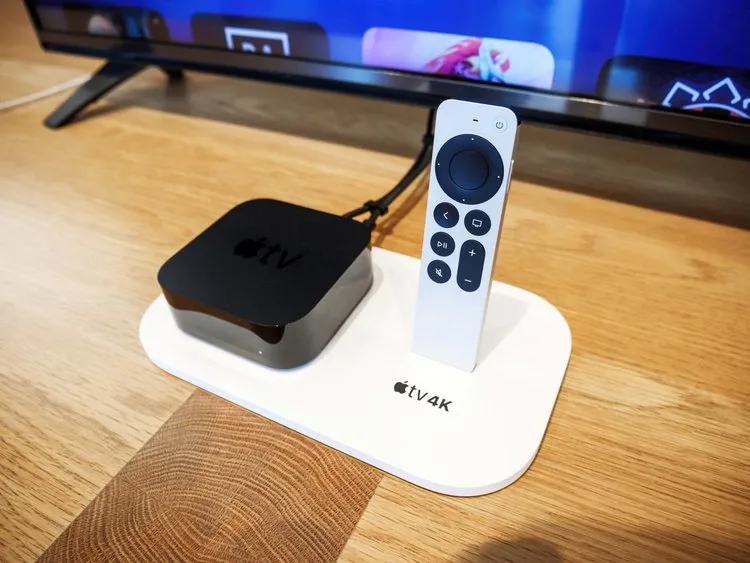
Setting up IPTV on Apple TV is easier than most beginners expect. Apple TV does not come with a built-in IPTV player, but once you install the right app and add your subscription details, you can watch live channels, movies, and sports in minutes. This guide walks you through every step of IPTV on Apple TV, from what you need to fixing the errors that stop playback.
What You Need Before You Start IPTV on Apple TV
Before you touch the remote, gather everything in one place. IPTV on Apple TV needs only a short list of essentials, and having them ready turns the whole setup into a ten-minute job:
- An Apple TV 4K or Apple TV HD, with tvOS updated to the latest version
- A stable internet connection of at least 25 Mbps for HD and 50 Mbps for 4K
- A compatible IPTV player app from the App Store
- Your IPTV subscription login or playlist details from your provider
Apple TV supports a good range of popular IPTV player apps, so you are not locked into a single program. Only download apps from the official App Store — Apple Support explains how to check for tvOS and app updates if anything looks out of date. Connection quality matters as much as the app: the Apple TV 4K handles fast Wi-Fi well, but a wired Ethernet connection, or a strong Wi-Fi signal in the same room, gives noticeably smoother playback than a weak signal fighting through walls from another room.
How to Install an IPTV Player on Apple TV
Installing the player is the longest part of the setup, and it is still simple. Follow these steps in order:
- Turn on your Apple TV and open the App Store from the home screen.
- Search for a reputable IPTV player app and read its recent reviews before choosing.
- Select the app and install it, then wait for the download to finish.
- Open the app. If it asks for local network access, allow it — the player needs it to reach streaming servers on some networks.
- Choose how to add your subscription: an M3U playlist URL, or an Xtream Codes login, depending on what your provider sent you.
- Enter your details carefully, save the playlist, and let the app load your channels.
Each field has a simple job. The server URL is the address of your provider's system — the door the app connects to. Your username and password are the personal login that proves the subscription is yours. The playlist name is just a label for your own list, so call it something you will recognise, like "Living Room" or "Sports".
Two warnings save most beginners a headache. Never share your login details publicly — anyone with them can use your line. And type the playlist URL exactly as given, character for character: one wrong letter or missing symbol breaks the whole list, and the app will simply show no channels.
Adding Channels, EPG, and Favourites on Apple TV
Once your details are saved, the app downloads your channel list. A large library can take a minute or two on the first load, so give it time before assuming something is wrong. After that first sync, opening the app and browsing channels is fast.
Next, let the electronic programme guide — the EPG — finish syncing. The guide is what shows what is on now and next for each channel, and it can take a few minutes to populate fully the first time. Leave the app open, let it complete, and your IPTV on Apple TV will feel like a proper TV service instead of a folder of streams.
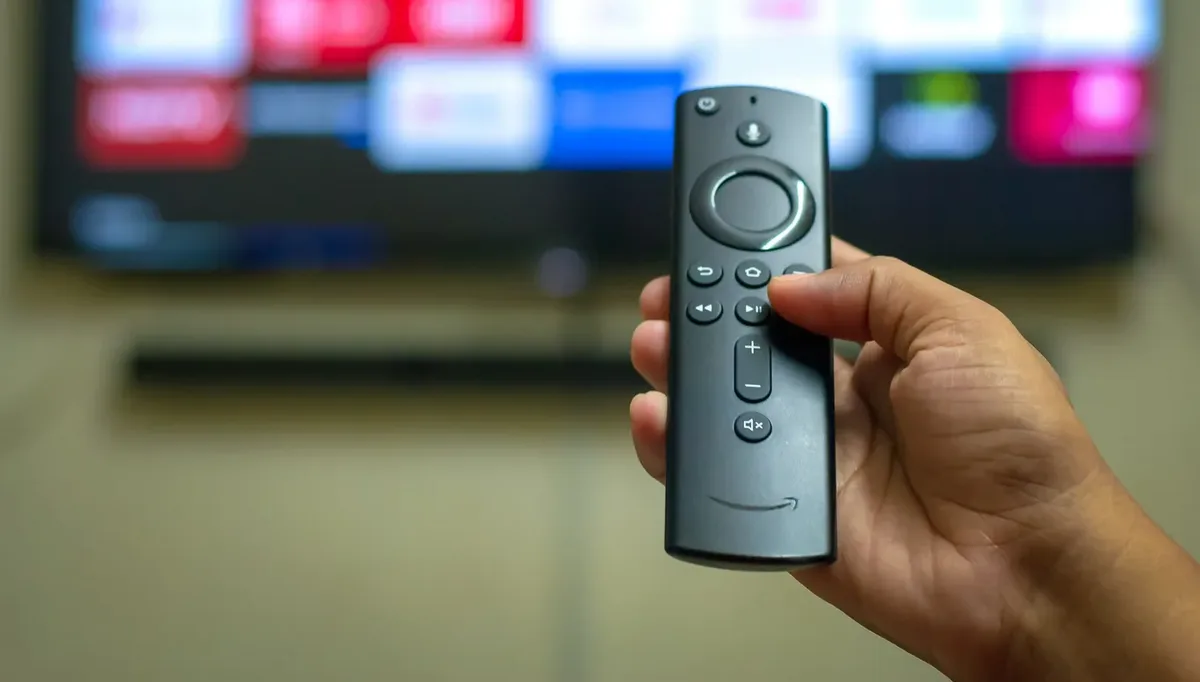
Now make the list yours. Mark the channels you actually watch as favourites so they sit at the top, and create groups for sports, news, movies, and kids — with thousands of channels available, groups are the difference between scrolling forever and finding a match in seconds. The Siri Remote makes this easy: use its search to jump straight to a channel or programme, the touch surface to move quickly through lists, and the playback controls to pause and resume live TV where the app supports it.
One tip for 4K owners: in Apple TV settings, set the video output to match content and frame rate. This lets the box switch to the format each stream was made in, which gives smoother motion — especially noticeable during fast sports.
Fixing Common IPTV on Apple TV Problems
Most problems have a simple cause and a quick fix. Work through this list before you assume the service is down:
- App shows no channels: check the playlist URL for typos and confirm your subscription is still active with your provider.
- Buffering or freezing: run a test with Speedtest by Ookla, restart your router, switch to Ethernet if you can, or lower the stream quality one step.
- EPG missing or empty: refresh the guide inside the app, wait a few minutes for it to sync, and re-add the playlist if it still does not load.
- App crashes: update tvOS and the app itself, then restart the Apple TV from its settings menu.
- Login errors: re-type your username and password slowly, watching for extra spaces, and confirm the subscription is active.
If you are coming from another device, the same habits apply — our guide to watching IPTV on a Smart TV covers the guide and favourites setup in more depth, and most connection advice transfers directly.
Apple TV is one of the cleanest ways to watch IPTV thanks to its fast interface and reliable apps. Once your playlist is added, keep your apps updated and your connection stable, and most problems disappear. Ready to try it? See the Premium pricing section and start with the 24-hour trial through WhatsApp — your login details arrive within minutes, and this guide will have you watching the same evening.
Sources & further reading
Try OrigineTv free for 24 hours
Full Premium access — every channel, every match, all VOD — on your own TV, free.
See Premium Plans Get 24H TrialStay safe while streaming
One practical tip whichever provider you choose: streaming runs over your home connection, so a reliable VPN keeps your viewing private and can help with ISP throttling at peak hours — and pairing it with good antivirus cover keeps the device you stream on protected too.
Some of the links in this section are affiliate links — we may earn a commission at no extra cost to you.