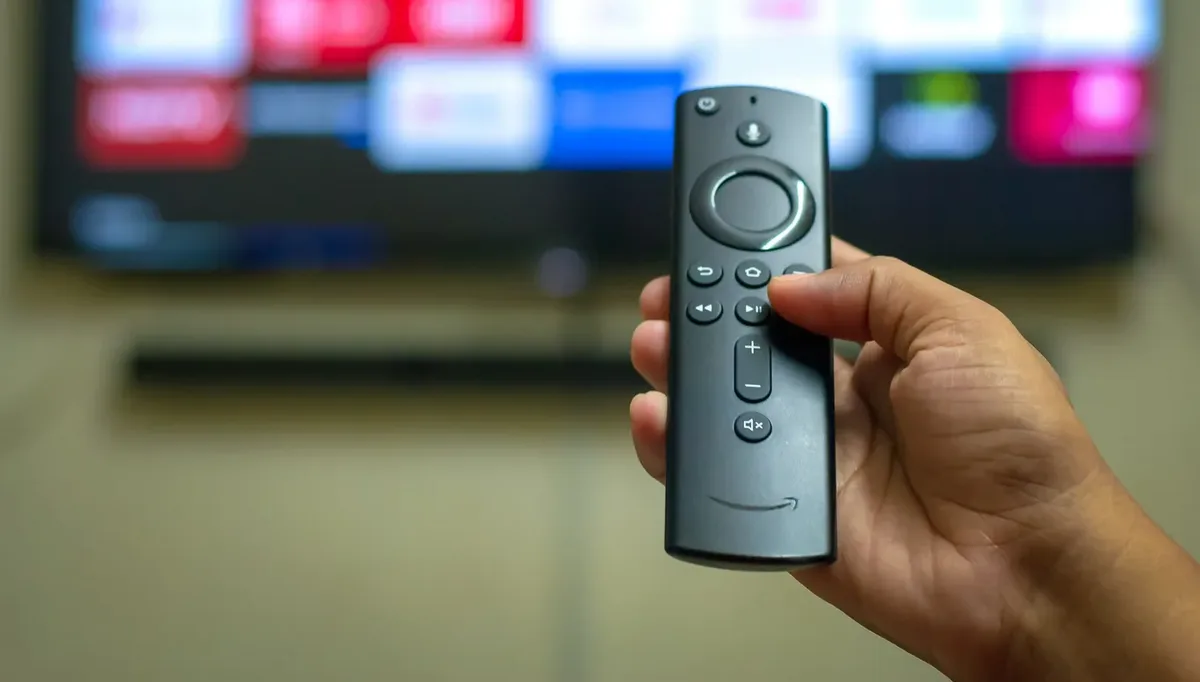
How to Watch IPTV on Roku in 2026: Setup Guide for Beginners
Roku is one of the most popular streaming platforms in US homes, so it is no surprise that so many viewers ask how to watch IPTV on Roku. The good news is that IPTV on Roku works well once you understand how the platform is built. With OrigineTv, a compatible player app and about ten minutes, you can be watching live channels, sports and movies on any Roku TV or streaming stick. This beginner-friendly guide covers the full Roku IPTV setup for IPTV Roku 2026 viewing, from checking your device to fixing the small details that make 4K playback smooth.
Can You Watch IPTV on Roku?
Yes — but Roku works differently from Android-based devices. Roku runs a closed system: every app must come from the official Roku Channel Store, and there is no way to sideload Android APK files or install apps from unknown sources. That also means you cannot upload an M3U playlist file directly into Roku itself. Instead, you install a player app from the Channel Store and enter your provider login inside that app.
Think of it in two parts. Your subscription provides the channels. The player app is simply the screen that displays them. Once the two are connected with your login details, the experience feels like normal TV, complete with a guide and favorites.
There is also a second route: casting and screen mirroring. Most Roku models support AirPlay from an iPhone or iPad and screen mirroring from Android phones and Windows PCs. You start playback in an IPTV app on your phone and mirror it to the Roku. It is a handy backup, but a native player app on the Roku itself gives you better picture quality, less delay and a remote that controls everything, so we recommend the app route first.
How to Set Up IPTV on Roku Step by Step
Follow these steps in order and your Roku IPTV setup should take less than fifteen minutes:
- Check your Roku model and connection. Any recent Roku TV, Roku Streaming Stick or Roku Express can run a player app. Open Settings and check for a system update first, then connect to your home network. For 4K channels, place the Roku where it gets a strong Wi-Fi signal, or use a wired Ethernet adapter on models that support one.
- Install a verified IPTV player app. From the Roku home screen, open Streaming Channels, search for an IPTV player, and add the channel. Choose a player with recent updates, clear setup instructions and support for the login type your provider uses.
- Enter your login details. Open the player and add the details from your provider. Most services, including OrigineTv, work with an Xtream Codes login (server URL, username and password) or an M3U playlist link. Some players instead show a device code or MAC-style address that you activate through the player provider portal — follow the on-screen instructions exactly and double-check for typos.
- Set up the EPG. After the channel list loads, add or refresh the EPG (electronic program guide) using the guide link or the automatic guide option in the player. Allow the first download to finish completely, then set your timezone so program times line up correctly.
- Organize and test. Mark your favorite channels, check a live sports channel and a movie channel, and confirm the guide opens quickly. If the first load feels slow, restart the Roku once — the second launch is normally much faster.
If anything does not match these steps on your model, Roku Support has model-specific help for adding channels and checking connections.
Best IPTV Apps for Roku in 2026
Because Roku is a closed platform, the honest answer is that the best IPTV app for Roku is the one currently listed in the Channel Store that supports your provider login. Listings change over time, so always search the store on your own device before paying for any player licence. Player names that are listed in the Roku Channel Store at the time of writing include:
- IPTV Pro — a straightforward playlist player that accepts M3U links and Xtream Codes logins, with EPG support for a proper TV-guide view.
- IBO Player — a popular player activated through a web portal using the address shown on your TV screen; a good fit if your provider activates by device.
- Hot Player — another store-listed M3U player with a simple interface that suits beginners.
Two warnings matter here. First, players contain no channels of their own — anyone selling you a player as if it were a subscription is misleading you. Second, avoid lookalike listings with copied names and no clear developer; check ratings and the developer name in the Roku Channel Store before you install or pay anything.
IPTV on Roku: Tips for Buffer-Free 4K Streaming
Roku hardware handles 4K well, but your home network decides whether the picture stays smooth. These habits make the biggest difference:
- Aim for 25 Mbps or more for 4K. Run a check with Ookla Speedtest on a device near the TV, at the time you normally watch. HD needs less, but 4K live sports is unforgiving when the connection dips.
- Stabilize the connection. Keep the Roku in the same room as the router where possible, use the 5 GHz Wi-Fi band for less interference, or use a wired Ethernet adapter for the most reliable result.
- Restart the Roku regularly. A quick restart clears temporary glitches. If a stream starts looping or freezing, restart before changing any settings.
- Keep everything updated. Let Roku system updates and player app updates install promptly — they regularly fix playback and guide bugs.
- Reduce competition at peak time. Pause large game downloads and cloud backups during a big match so the Roku gets the bandwidth it needs.
IPTV on Roku vs Firestick and Smart TV
Each platform has a personality. Roku is the simplest to live with: a clean home screen, a comfortable remote and very little to configure, but its closed store means a smaller choice of player apps. Firestick is the most flexible option for IPTV, with a wider range of players and settings — our IPTV on Firestick guide walks through that setup in full. A Smart TV removes the extra device entirely and runs everything on the set itself, as covered in our IPTV on Smart TV guide. If you already own a Roku and like its interface, there is no need to switch: the same OrigineTv subscription works across all of them, so you can keep Roku in the living room and use other devices in other rooms.
Stay safe while streaming
One practical tip whichever provider you choose: streaming runs over your home connection, so a reliable VPN keeps your viewing private and can help with ISP throttling at peak hours — and pairing it with scam protection against fake streaming sites keeps the device you stream on protected too.
Some of the links in this section are affiliate links — we may earn a commission at no extra cost to you.
Frequently Asked Questions
Does Roku charge extra for IPTV?
Roku itself does not charge for IPTV. Some third-party player apps ask for a one-time activation fee paid to the app developer, which is separate from your IPTV subscription.
Can I watch IPTV on Roku without a player app?
Only by mirroring from a phone, tablet or computer. For everyday viewing, a Channel Store player app is more stable and much easier to control with the Roku remote.
Why is my EPG empty after setup?
The guide usually needs a few minutes for its first full download. Refresh the EPG inside the player, confirm your timezone, and restart the app once. If it stays empty, ask your provider to confirm the guide is included with your login.
Ready to try IPTV on Roku on your own TV? Start with the free 24-hour trial, install a player, and test a live match and a 4K movie tonight. See our Premium pricing for full plans — Premium starts at $19.99 for 1 month on 1 device, ready within 10 min – 8H — and check the homepage FAQ if you have questions first.
Sources & further reading
Try OrigineTv free for 24 hours
Full Premium access — every channel, every match, all VOD — on your Roku, free.
See Premium Plans Get 24H Trial